With my skill, Claude Code builds screens that look like our product
2 days → half a day for a feature's screens (team estimate)
Irame's team builds its audit software by vibe coding: they tell an AI what they want, and it writes the code. The AI didn't know our design, so every screen looked different. Now it follows my rules first.
Before is recreated. Open either screen to see it large.
Role
Senior Product Designer
Company
Irame.ai
Scope
A Claude Code skill for the team
Timeline
Aug 2026 · 2 weeks for the skill
Problem
The team builds by telling an AI what they want. The AI didn't know our design, so every screen looked different.
My role
I designed Irame's design system, then packaged it as a Claude Code skill.
What I built
A Claude Code skill: design rules the AI reads by itself. Every screen on the platform now follows it.
Outcome
Engineers, PMs and the founders build screens themselves, and only screens with new patterns need my review.
New to this?
A skill is a rulebook the AI reads before it starts
When someone new joins a team, they get a guide: this is how we do things here. A skill is that guide, for an AI. Here is what happens when someone asks for a screen:
FromSomeone types "build a dashboard"
Claude reads the skill
Colours and typefrom the cheat sheet
Ready-made partsbuttons, cards, tables
Always and never ruleschecked before it's done
3 screensA dashboard that matches the productthe same look as every other screen
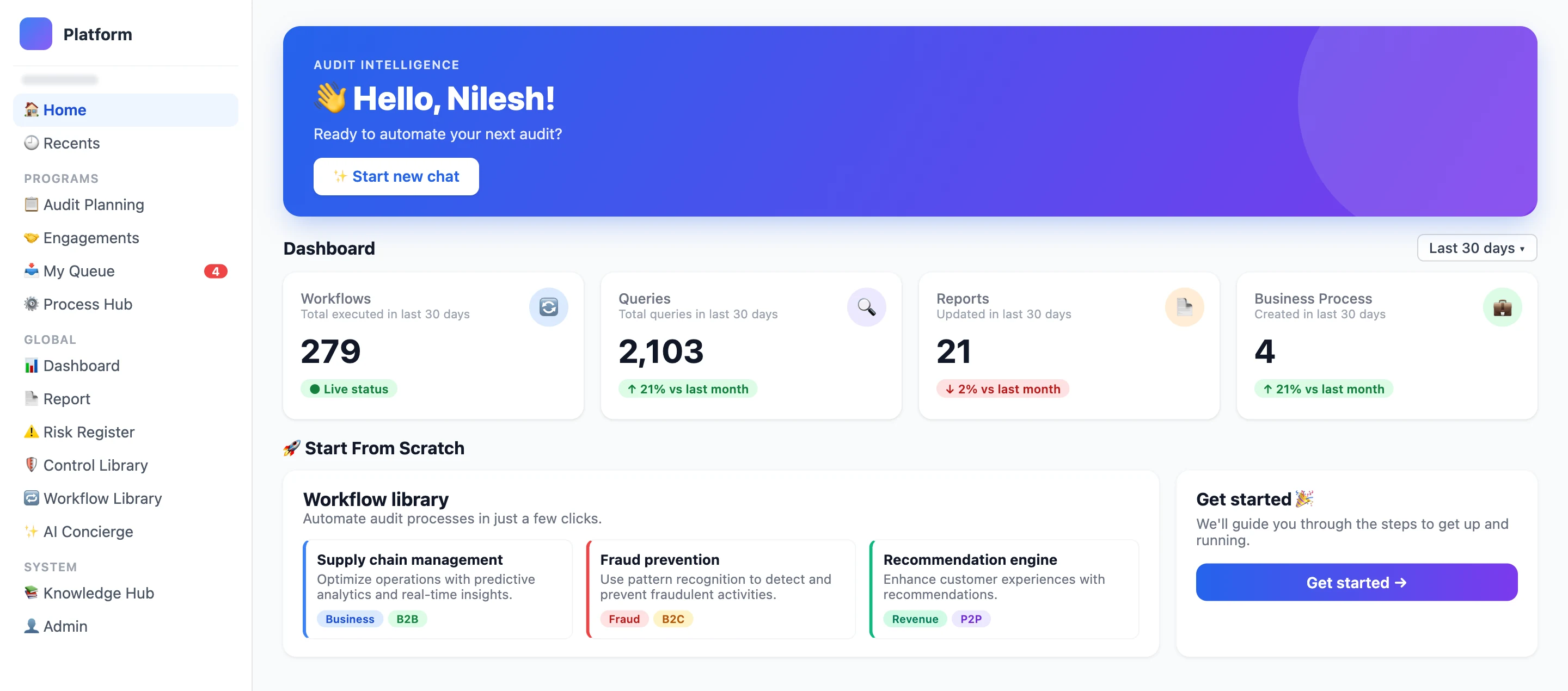
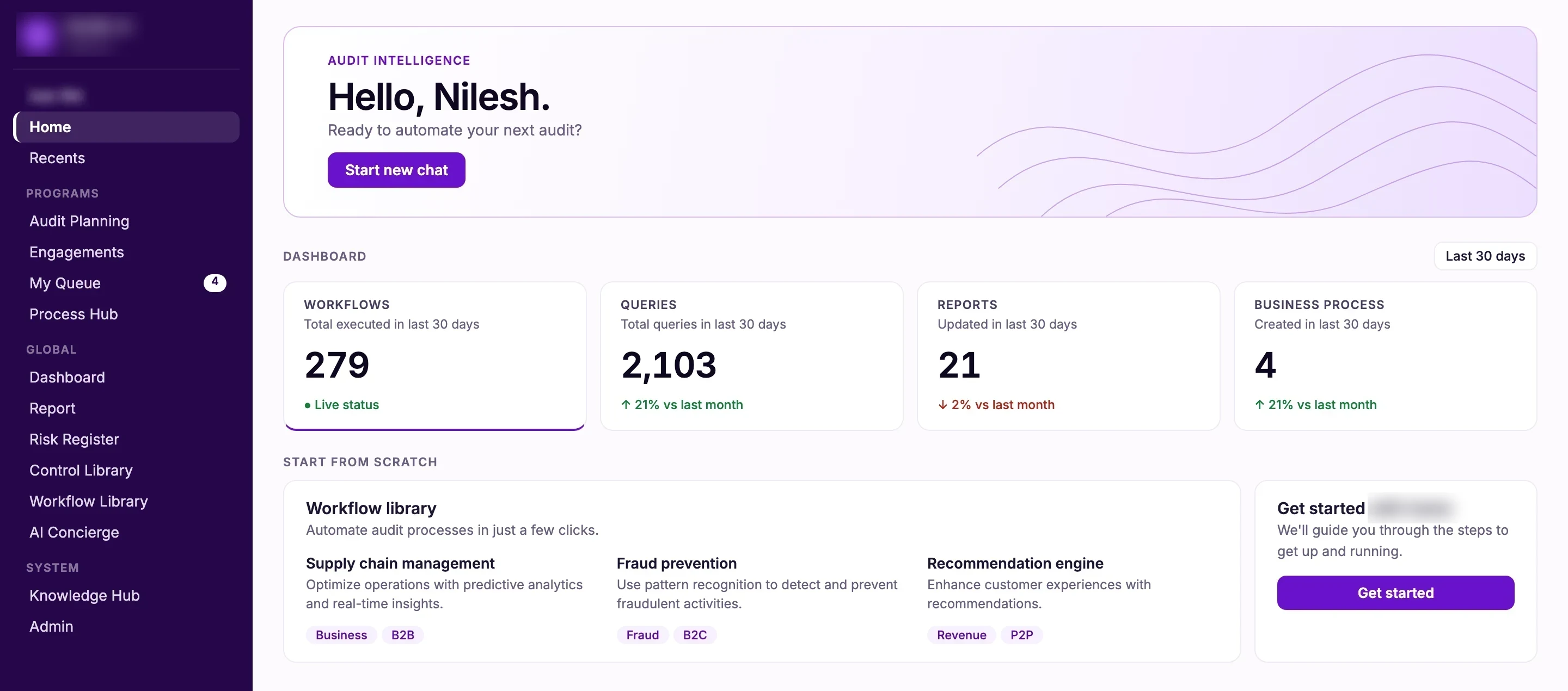
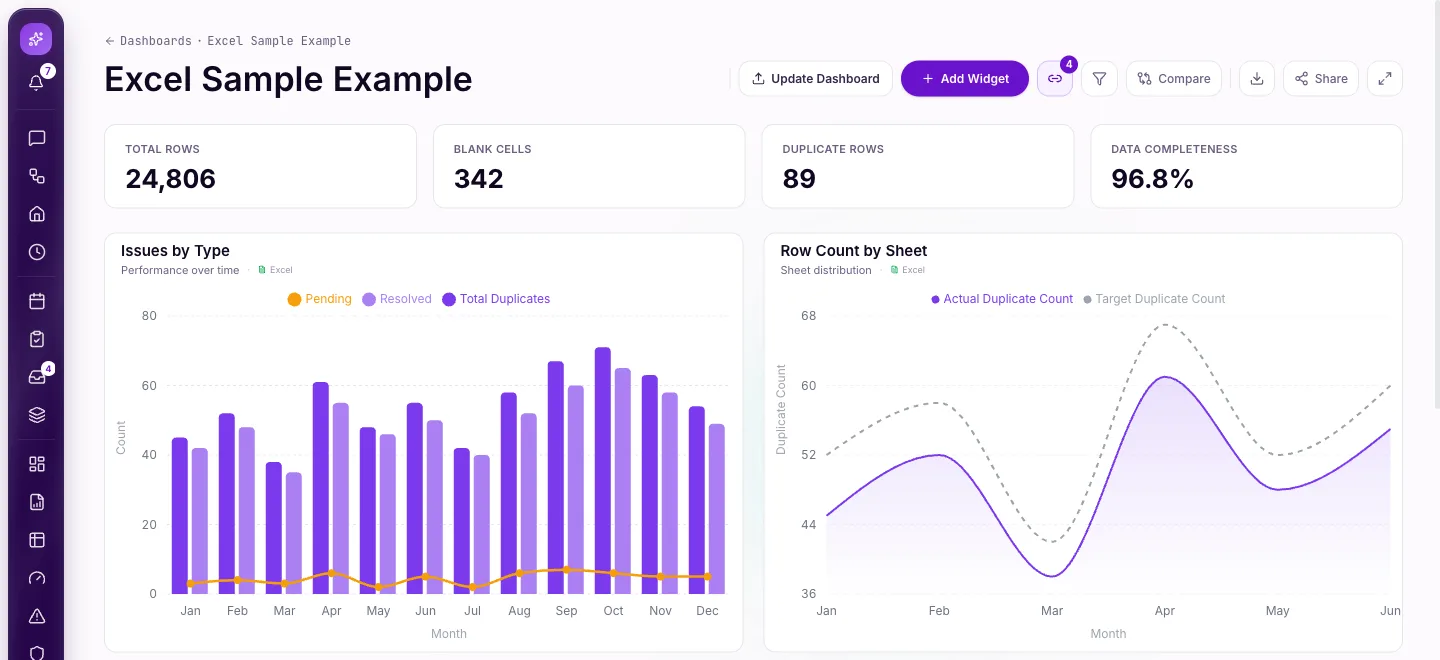
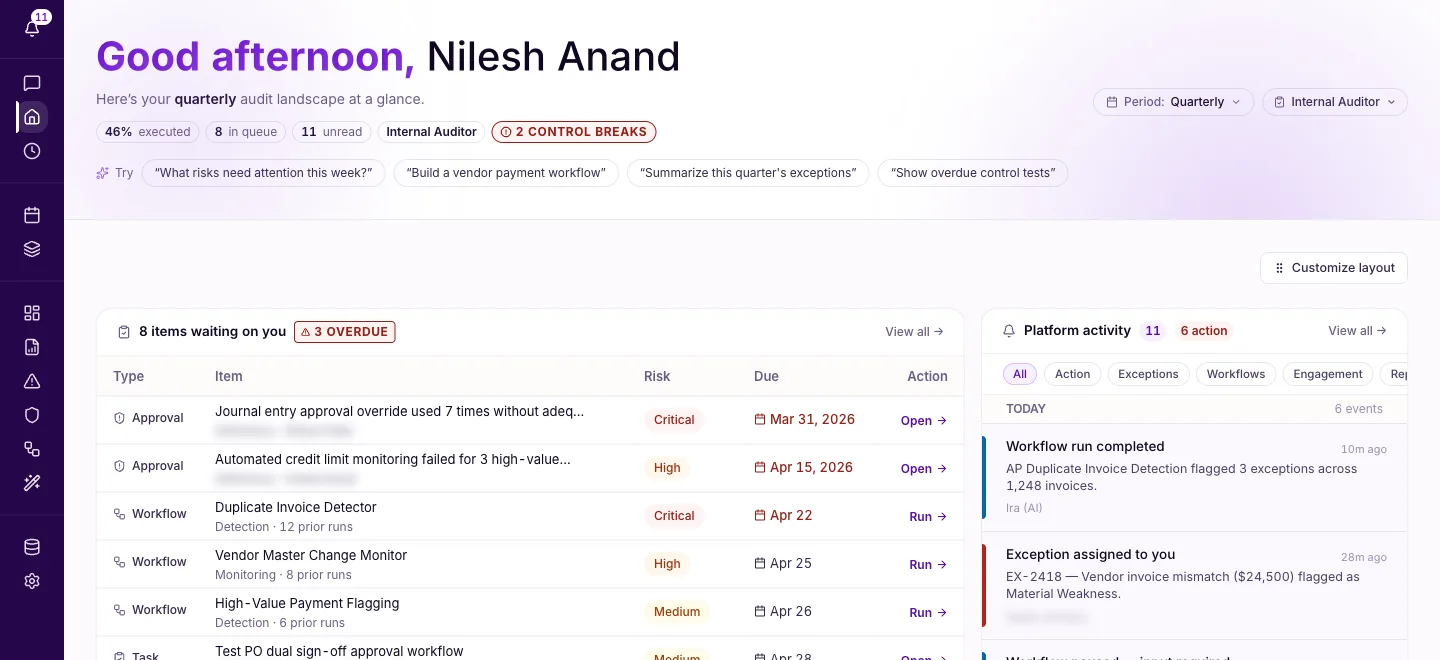
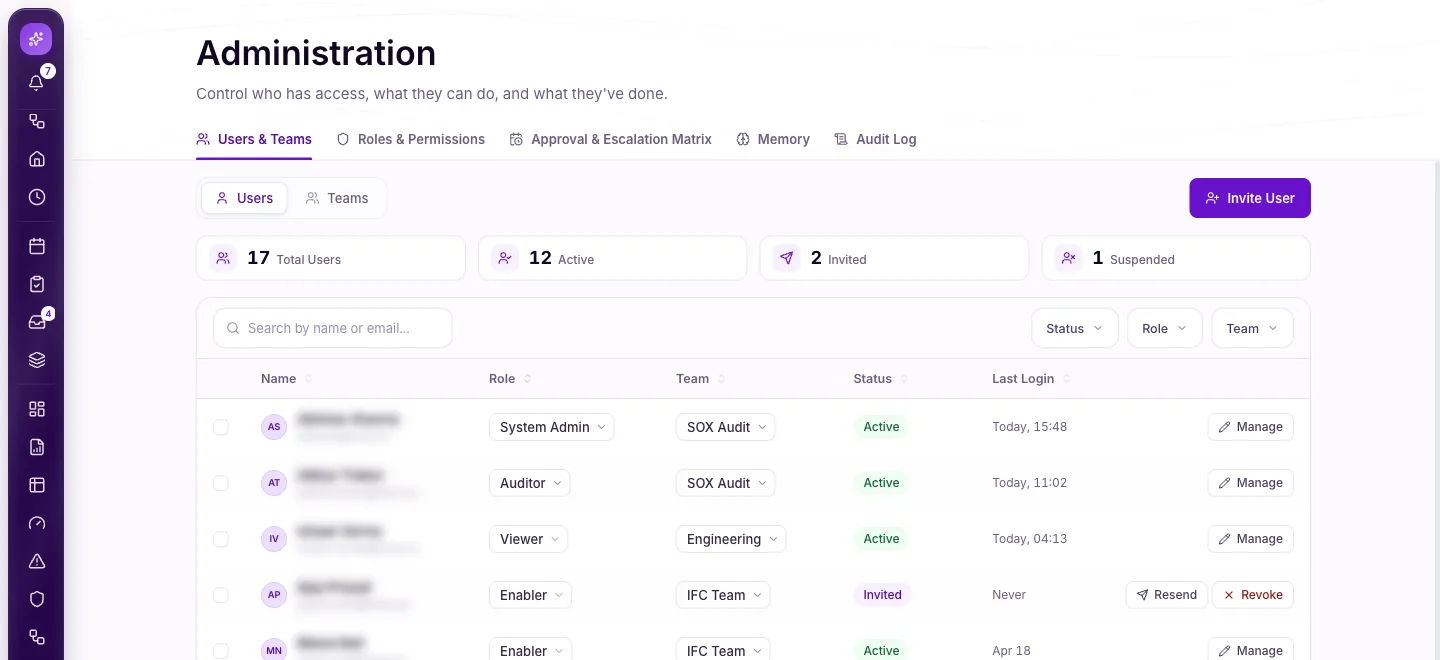
Those are real screens, and I didn't build them. Engineers, PMs and the founders built the Dashboard, Home and Admin with the skill. Different people, same product. Names are blurred, and the data is demo data.
It doesn't read everything every time. Claude reads only as much as it needs:
1AlwaysIts name and purpose
One line per skill, like a table of contents.
ReadsA few lines
2Every screen requestThe cheat sheet
Colours, fonts, spacing and the always and never rules.
ReadsOne page
3Only hard screensThe full guide
For tricky parts, it looks up the exact answer.
ReadsThe part it needs
Before and after
Most screens no longer wait on design review
Before
Every screen waited for a design review
Screens looked different from each other
About 2 days for a feature's screens
With the skill
Only screens with new patterns get reviewed
Every screen looks like the same product
About half a day (estimate)
Decisions
Three choices that made it work
1Design in Claude Code×Instead ofDesign in Figma first, then hand it over to engineers.WhyThe team builds in Claude Code, so I designed there too. The AI reads the rules directly, so nothing gets lost in a handover.
2Cheat sheet + full guide×Instead ofOne giant document the AI reads every time.WhyThe AI follows a short cheat sheet closely and a giant document badly. The full guide covers the hard parts.
3Rules with a yes or no×Instead ofWords about the feel, like "make it premium".WhyThe AI can follow "use 12 or 16, never 14". It can't follow "make it premium". A person can check a clear rule fast, too.
Full story
That's the short version. Below: what's inside the skill, how I built it, the results and what I learned.
What's inside
Four files: one the AI always reads, one it opens when needed, one for code, one for people
Click a file to look inside. The line above each one says what it does. The examples use made-up names and colours, so the real product stays private.
design-system skill
design-system/
The cheat sheetRead for every screen
The top tells Claude when to use the skill. The rest is the rules for every screen.
SKILL.mdExample, names and colours changed
---name: product-design-system
description: The product's design system. Use whenever building
any screen, for requests like "build a button",
"design a dashboard card" or "show an AI answer".
---# Design system skill
This page is the cheat sheet. Open DESIGN.md only when this page doesn't cover it.
## Quick-reference tokens
--accent-600: #6B3FD4; /* buttons, links, focus ring */
--accent-900: #2A1659; /* sidebar, headings */
--canvas: #FAF9FC; /* app background */
--border: #E7E4EE; /* card edges */## Always
- Snap to the 8pt grid. If something needs 14px, use 12 or 16.
- Numbers line up in columns.
- Spell out severity: Critical, High, Medium, Low.
- Accent colour only for signal: buttons, links, focus.
## Never
- Colour as the only way to show something.
- Fake streaming on text that's already there.
## Workflow
1. Build from existing parts. Don't invent new ones.
2. Check the result against the do's and don'ts.
The full guideOnly when needed
The full guide: 20 parts, about 3,200 lines. Claude opens it only when the cheat sheet isn't enough.
DESIGN.mdExample, names and colours changed
# DESIGN.md · the full guide

 1. Visual theme          11. Shared patterns
 2. Colour                12. AI screens
 3. Typography            13. Product screens
 4. Components            14. Roles and personas
 5. Layout                15. Composition recipes
 6. Depth and elevation   16. Content voice
 7. Do's and don'ts       17. Accessibility
 8. Responsive            18. Chart accessibility
 9. Prompt guide          19. Reference screens
10. Component states      20. Build kit

## 7. Do's and don'ts
- Snap to the 8pt grid.
- Keep the accent colour for signal. Don't paint containers with it.
- Show AI thinking honestly: dots while it works, a timestamp when done.
The real valuesRead by the code
Every colour, size and space as code, so screens use the exact values from the guide.
design-system.cssExample, names and colours changed
/* Every value has a name. Screens use the name, never a raw value. */
:root {
  --accent-600: #6B3FD4;   /* buttons, links, focus ring */
  --accent-900: #2A1659;   /* sidebar, headings */
  --canvas:     #FAF9FC;   /* app background */
  --space-2:    16px;      /* on the 8pt grid */
}

/* Dark theme: same names, new values */
[data-theme="dark"] { --canvas: #120B24; }
The picture of itFor people
Shows every colour and part, so a person can check the AI's work by eye. Comes in light and dark.
preview.htmlExample, names and colours changed
<!-- Opens in any browser. No build step. -->
<section id="colour">      every colour, as swatches
<section id="type">        the type scale
<section id="components">  buttons, inputs, pills, cards, tables
<section id="shell">       a full app screen built from the parts

<!-- preview-dark.html: the same page in dark mode -->
The process
Two weeks to turn the design system into a skill the whole team uses
Phase 1Define the look
Set the directionCalm and trustworthy first, then colours, fonts and spacing.
Wrote the full guideHow every colour, font, button and screen looks and behaves.
ResultOne guide for everything
Phase 2Package it for the AI
Made a cheat sheetThe always and never rules for every screen.
Told the AI when to use itOne line in the words people type, like "build a button".
Made a picture of itEvery colour and part on one page, to check the AI by eye.
ResultA skill that switches on by itself
Phase 3Test and ship
Tested itReal screens from the AI, each checked against the rules.
Gave it to the teamA one-command install, with a version number on every change.
ResultEveryone building the same way
Impact
One look across the whole platform
Reach
Whole platform
Every screen on Irame now follows the skill, whoever builds it.
Speed
About 75%
Less time on each feature's screens: about 2 days down to half a day.
Where it breaks
The full guide, the cheat sheet and the CSS can stop matching. Then the AI gets mixed messages.
The fix: I change the full guide first, copy the change to the cheat sheet and the CSS, and give it a new version number.
The companion plugin
A plugin keeps the code tidy
I also built a companion plugin, for the code underneath. It lives in its own folder, separate from the skill. The skill makes screens look right. The plugin makes the code follow the team's rules.
Hard stops
Claude asks instead of guessing, and stops before risky changes.
9 shortcuts
Commands for common jobs, like checking code before it ships.
Safe updates
Running the install again updates it safely.
Startup check
Before it starts, Claude reads the team's rules and what has changed.
Notes from the past
What the team already learned, so Claude doesn't repeat old mistakes.
Learnings and next
What I learned
The short description matters most
The AI uses that one description to decide whether to switch the skill on. If it doesn't use the words people type, the skill never runs.
Rules for an AI help people too
Rules simple enough for an AI are easy for a new teammate to learn and quick to check.
Next, not done yet
Time the next four features with and without the skill, so the 75% becomes a measured number.
Screening Nilesh?Answers come from my resume and case studies
The 10-second version
Senior Product Designer, 4.7+ years in B2B SaaS and B2C, focused on AI products for experts. Took an AI audit platform from concept to production in 6 months, and builds what he designs in code.